
Tutorial · 2
The games library
Your whole collection on the left of the window, with pictures, ready to play.
Game folders and the scan
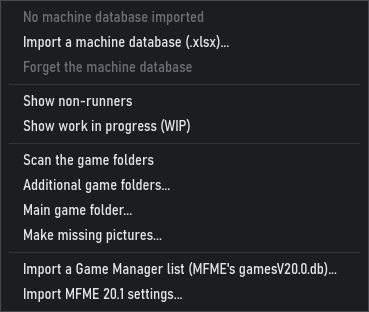
Everything about where your games are lives in the library menu, the three dots beside the view buttons.
- Main game folder... the folder your collection is in. XFME keeps a games list for each main folder.
- Additional game folders... more folders to include in the same list.
- Scan the game folders finds the games in those folders. A new library lists nothing until its first scan; scan again whenever you add games.
- Show non-runners and Show work in progress (WIP) add the games marked that way, which the list leaves out by default.
Finding a game
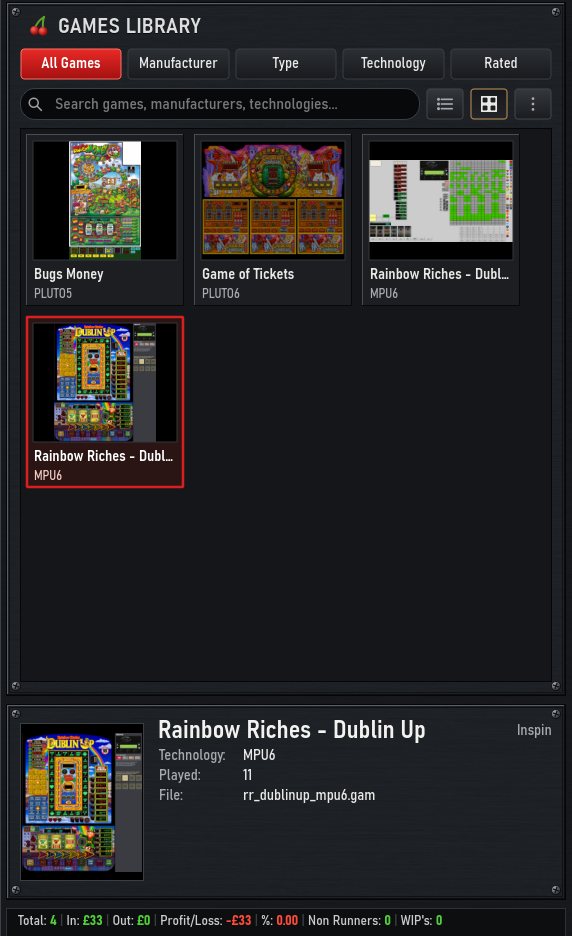
- Tabs. All Games by name; Manufacturer and Type grouped from your machine database; Technology grouped by each game's system; Rated for the games you have rated, best first.
- Search. Type part of a name, a manufacturer or a technology.
- List or pictures. The two buttons beside the search box switch between the list (name, rating, version, technology) and the picture view.
- The chosen game shows below the list: its picture, system, how often it has been played and its file.
- Play it with PLAY, Enter or a double-click.
Pictures
A game's picture is the image beside its .gam, found the way MFME's Game Manager finds it (for example bugs_1.jpg beside bugs.gam). For games with no picture, Make missing pictures... starts each of them in turn and takes one for you.
Right-click a game
For Play, Play in a new window, Show in its folder, Game notes..., Read its .gam again (after you edit it), Remove from the library, and Remove and hide, which also writes Hidden into the .gam, as MFME's Game Manager does.
The machine database
If you keep a spreadsheet of machines (.xlsx) with their manufacturer, type, year and cabinet, Import a machine database adds those details to your games and fills the Manufacturer and Type tabs. Matching is strict: a game that matches one machine clearly shows its details; a game that matches several, or none, shows nothing rather than a guess. XFME keeps its own copy and only reads your spreadsheet. Forget the machine database takes it out again.
Bringing in MFME's lists and settings
- Import a Game Manager list (MFME's gamesV20.0.db)... copies the games listed in the main game folder's MFME list into XFME's own list.
- Import MFME 20.1 settings... copies MFME's options, recent games and Game Manager folders where XFME has none of its own. Start XFME again afterwards.
Both only read MFME's files. When XFME first opens a main game folder that has an MFME list, it says so once and leaves it alone.